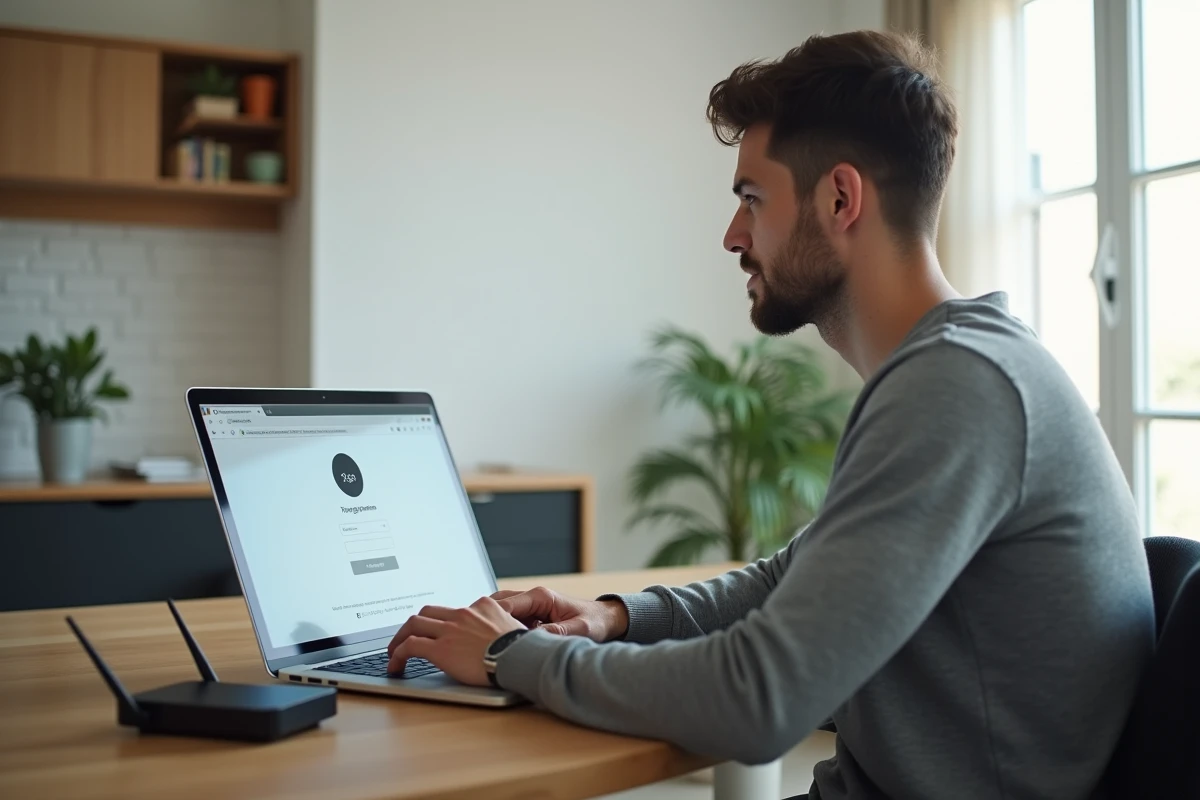
Connect your Freebox, open a browser, type mafreebox.freebox.fr, and nothing happens. Blank page, certificate error, or timeout. This is the most common scenario when trying to access the Freebox OS interface for the first time, or after a network configuration change.
The address mafreebox.freebox.fr works on all current models: Mini 4K, Revolution, Delta, Pop, and Freebox Ultra. The principle remains the same, but the causes of blockage vary depending on the installation.
Why mafreebox.freebox.fr is not loading: common network blockages
Before looking for a problem on the Freebox side, check the most obvious. The device from which you are trying to connect must be connected to the local network of the Freebox, via Wi-Fi or Ethernet. A smartphone switched to 4G/5G, an active VPN, or a shared connection from another network prevents access.
The VPN poses a specific problem. The address mafreebox.freebox.fr is resolved by the Freebox’s DNS to a local IP. When a VPN redirects DNS requests to its own servers, the resolution fails. To bypass this blockage, you have two options: disable the VPN while performing the operation, or directly type the box’s IP address in the browser’s address bar. On most Freeboxes, this address is 192.168.1.254.
If the page remains inaccessible despite everything, a power restart of the Freebox (unplugging, waiting about thirty seconds, plugging back in) resolves the majority of cases. Feedback on this point varies by model, but it is the first reflex to have before going further. A detailed guide allows you to connect to mafreebox.freebox.fr by following each step according to your box model.
Freebox OS: password and first authentication
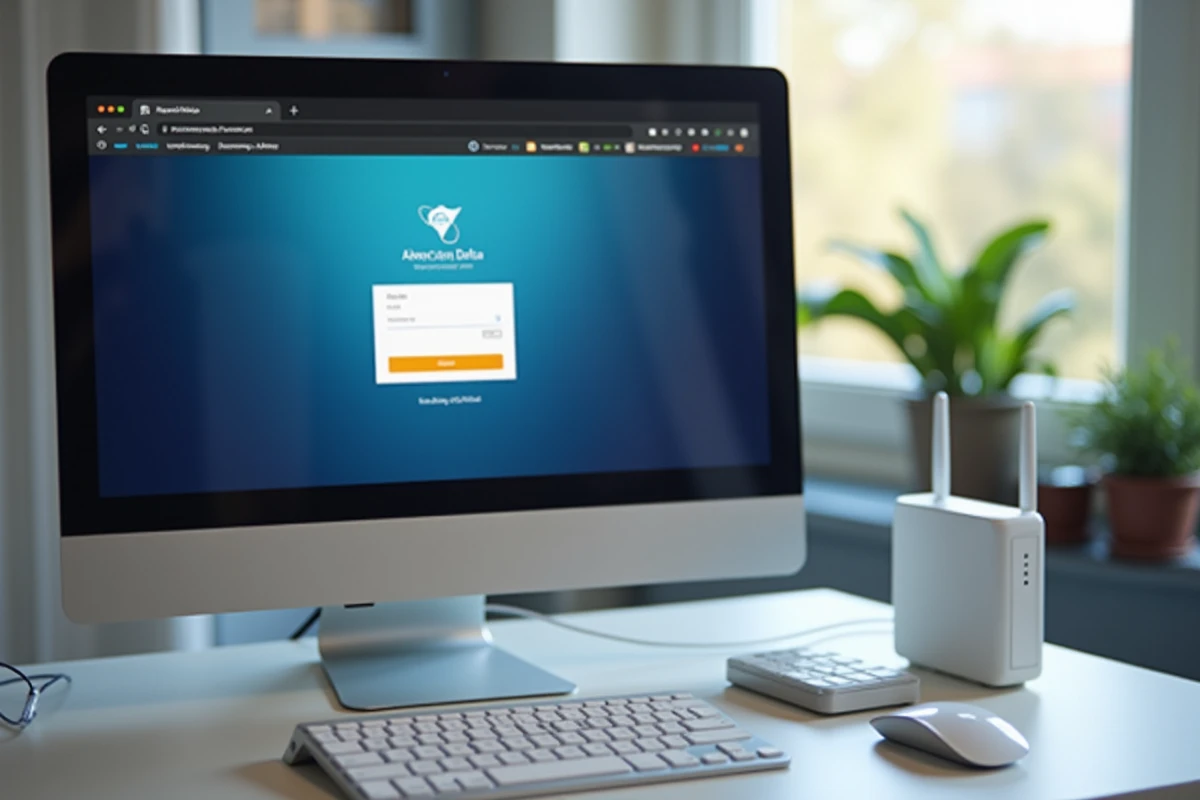
Once the page is loaded, Freebox OS asks for a password. If you have never set it, you need to create it directly from the local interface. The process goes through the LCD screen of the Freebox (on models that have one) or through a physical validation on the Server box.
Without physical access to the Freebox, no password creation. This is a security measure imposed by Free: only a person present in the home can initialize administrator access. You press the right arrow on the front of the Server when the interface requests it.
For subscribers who have forgotten their password, the reset goes through the same physical manipulation. You click on “Forgot password” in the web interface, then validate on the box. No email link, no SMS: everything is done locally.
Common error after firmware update
After certain updates of Freebox OS, the browser retains a cached version of the login page. The result: a form that spins in circles or a vague error message. A simple clearing of the browser cache, or opening the page in private browsing, resolves the issue.
Activate HTTPS and TLS certificate on Freebox OS
One point that most guides do not address: the connection to mafreebox.freebox.fr is done by default in unencrypted HTTP. On a home network, the risk remains limited. However, if you access Freebox OS from a shared network or via remote access, activating HTTPS with a TLS certificate changes the game.
The manipulation is done in Freebox OS, section “Freebox Settings”, then “Access Management”. There you will find the option “Secure connection (HTTPS)” and the possibility to activate a TLS certificate. Once activated, access switches to HTTPS with a padlock in the browser.
- Open Freebox OS via mafreebox.freebox.fr from the local network
- Go to “Freebox Settings”, then “Access Management”
- Check “Enable password authentication” if not already done
- Activate “Secure connection (HTTPS)” and validate the proposed TLS certificate
- Note the remote access address displayed if you also want to connect outside the home
This configuration secures both local access and remote access. For the latter, Free assigns a unique subdomain (of the type xxxxx.freeboxos.fr) that can be found in the same menu.
Remote access and Freebox Connect app: what replaces the browser
Accessing Freebox OS outside your home via a browser requires having activated remote access and noted the address provided by Free. It works, but is not always practical on mobile.
The Freebox Connect app (available on iOS and Android) offers a more direct alternative. It uses a token-based authentication system: you link the app to the Freebox for the first time from the local network, then you can control Wi-Fi settings, view connected devices, or restart the box remotely.
The app does not completely replace Freebox OS. Advanced settings (port forwarding, DHCP server configuration, fine firewall management) remain accessible only via the web interface. Freebox Connect covers common settings, Freebox OS manages the complete network configuration.
When to prefer the browser
For any modification affecting the local network (IP address ranges, static DHCP leases, DMZ), the browser remains the only tool. You also go through the web interface to configure a VPN server integrated into the Freebox or to manage access permissions for shared files on a disk connected to the box.
The Freebox Ultra, like previous models, exposes the same menus in Freebox OS. Transitioning from one model to another does not change the navigation logic in the interface; only a few hardware options differ based on the capabilities of the box.
Ultimately, keeping the address 192.168.1.254 as a favorite in your browser remains the most reliable way to access Freebox OS, regardless of DNS resolutions or updates that may temporarily disrupt mafreebox.freebox.fr.